How to Make an AI Video: From Planning to Sound and Editing
Using a 76-second product video made without filming, we walk through each step of making an AI video, the tools we used and the mistakes we fixed.
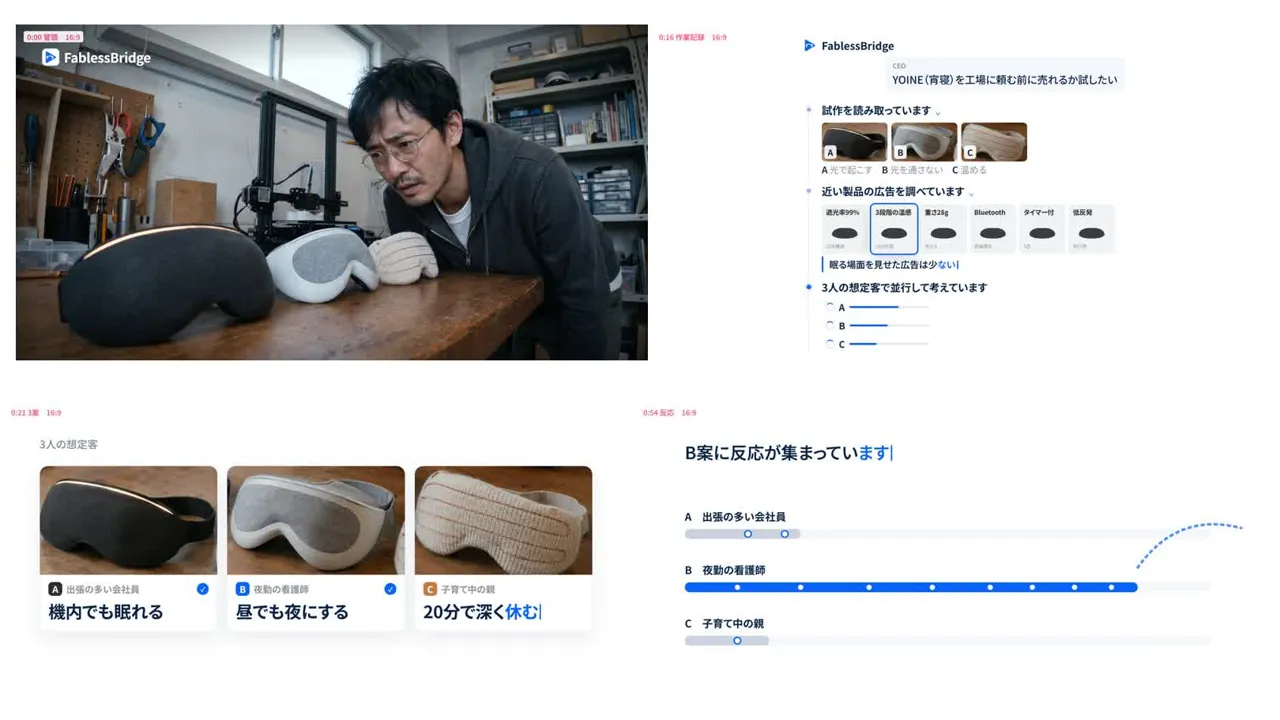
No single tool makes a finished AI video. The script, images, video clips, on-screen text, music and sound effects are made separately and then put together in the edit.
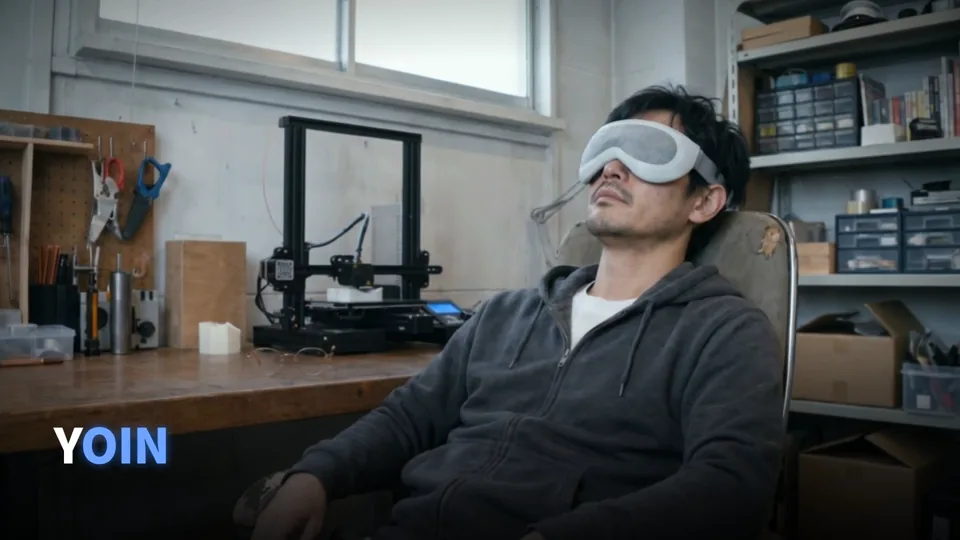
This post uses "Yoine," a 76-second in-house sample FablessBridge made without any filming, to explain what we made at each step, where things went wrong and what we fixed. The story follows a fictional smart sleep mask that tests three concepts with landing pages and ads before mass production. From the first instruction to exporting landscape, feed and portrait versions, we went through seven versions within the same day (including an overnight break).
How to make an AI video: the steps and the tools we used
- 01Decide who the video is for, what to show and which videos to use as references, then write a script with timings
- 02Use AI image generation to settle the cast, the prototypes and the key scenes
- 03Animate the chosen images with AI video generation to make short live-action-style shots
- 04Build the product screens and text in HTML and export them frame by frame
- 05Generate music and sound effects and sync them to the motion on screen
- 06Watch the whole video, write a critique and fix it over several versions
- 07Export a version for each aspect ratio the video will be used in
- Images
- GPT Image, Nano Banana Pro, Nano Banana 2
- Video
- Kling v3 (image to video)
- Screens and text
- Built in HTML and exported
- Music and sound effects
- ElevenLabs
The calls to each tool, the HTML for the screens, and the scripts for exporting and adjusting volume were all made by instructing Claude Code, an AI coding assistant. The author decided what to make and reviewed each finished version.
Planning: decide the audience, the message and the reference videos first
Before generating anything, decide who will watch, what the video says, and its length and aspect ratios. If these stay vague while you generate images and video, you end up remaking more and spending more.
For Yoine, we set these conditions first.
- Audience
- Startup CEOs hesitating just before placing a factory order
- Message
- Test three concepts with landing pages and ads, then pick one
- Length
- About 75 seconds
- Aspect ratios
- Landscape 16:9, feed 4:5, portrait 9:16
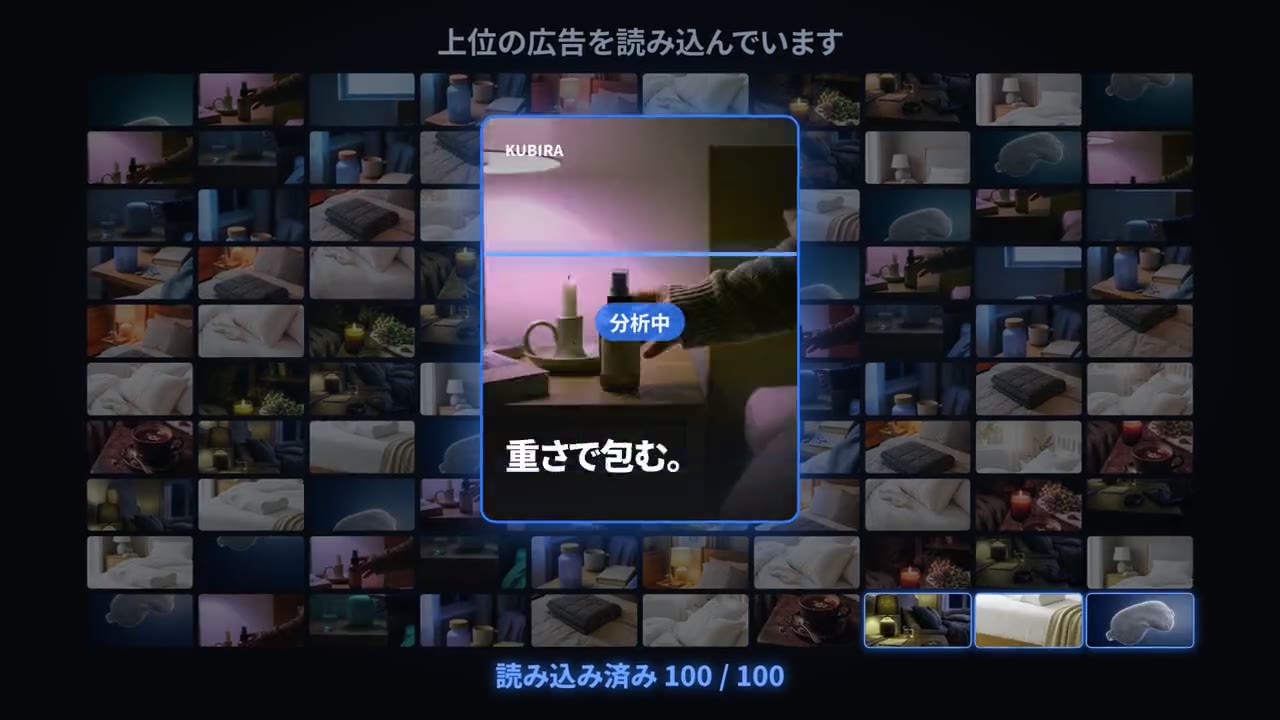
We also chose the reference videos up front so we could compare against them with numbers. We wrote a script that measures the share of time the frame is static. The reference ad came in at about 4%, and we set a target of 10% or less.
A gut-feel note like "more movement" does not tell you where to fix. With a number, you know which seconds to work on. The number is only a guide, though. Even in version 6 this share was about 14%, and in the end we judged by watching the whole video and writing a critique.
Settle the cast and key scenes with AI image generation
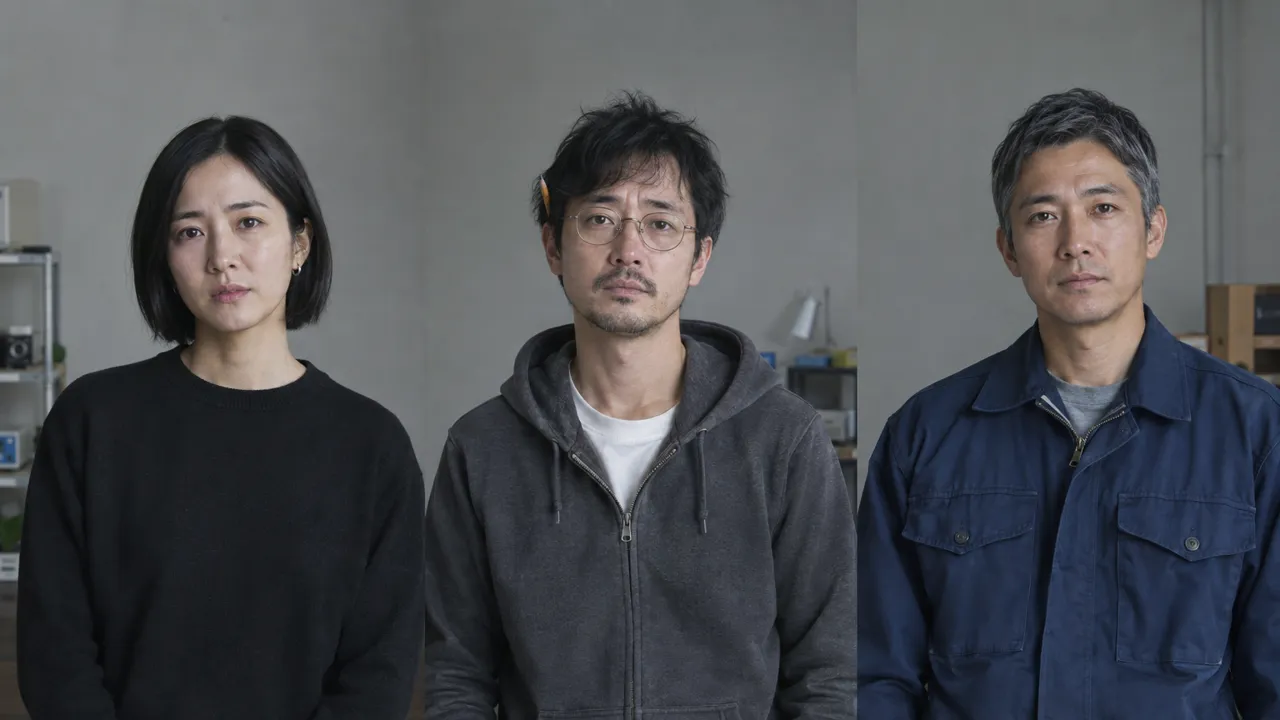
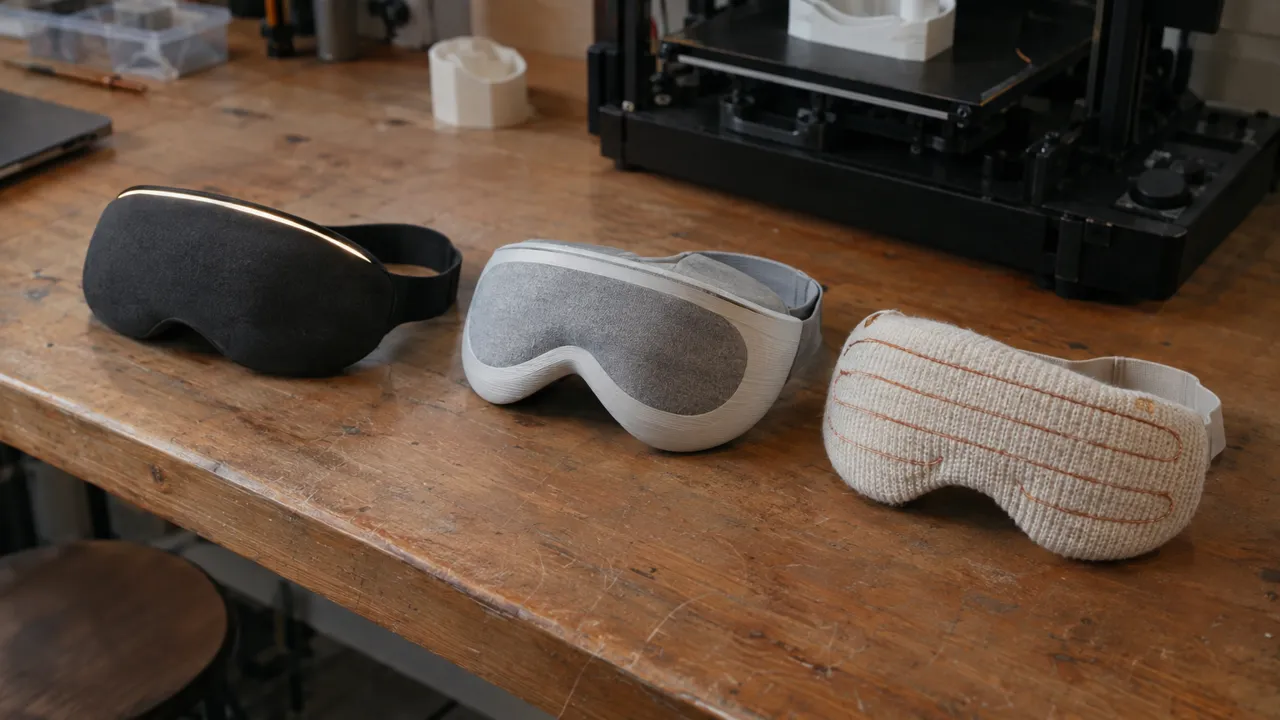
AI video generation builds motion from a source image, so faces, clothing and product shapes need to be fixed at the image stage. For Yoine, we generated three candidates each for the CEO and the night-shift nurse, plus three shapes for the prototype sleep mask, and chose from them.
Based on the chosen images, we laid out stills of the key scenes, such as the opening, the product screen, the three target customers and the scene where reactions gather, and checked the overall look before making any video.

Make live-action-style shots with AI video generation and check each one
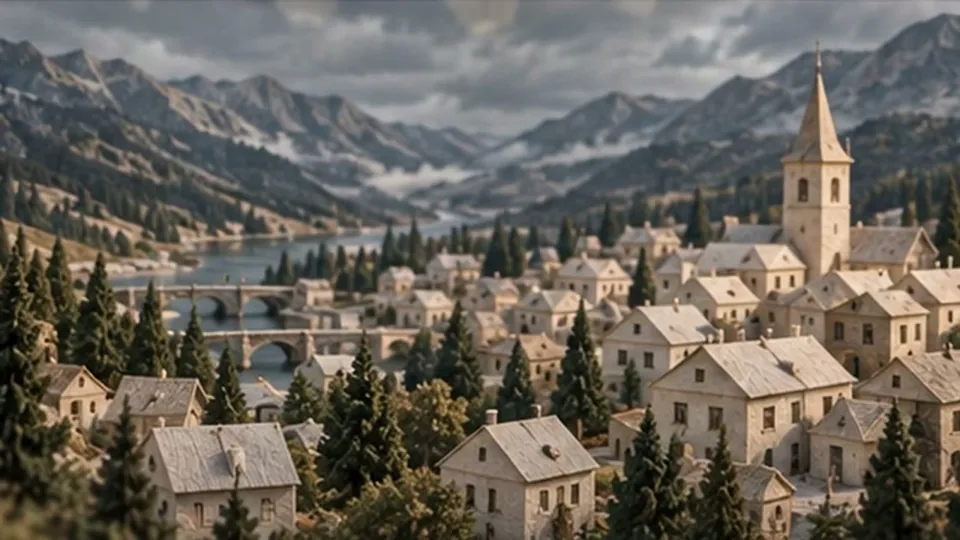
We gave the chosen images to Kling v3 and made live-action-style shots of 3 to 5 seconds. Including remakes, we generated 37 clips.
Check each generated shot for faces, hands, feet and any text in the frame. These are the failures we fixed on Yoine.
- 01The numbers on a quote were garbled and unreadable → we made a sheet with the correct numbers in HTML, used it as the source image and regenerated
- 02In the fabric-cutting scene, the scissors were held with both hands → we switched to a source image where the right hand cuts and the left hand holds the fabric down
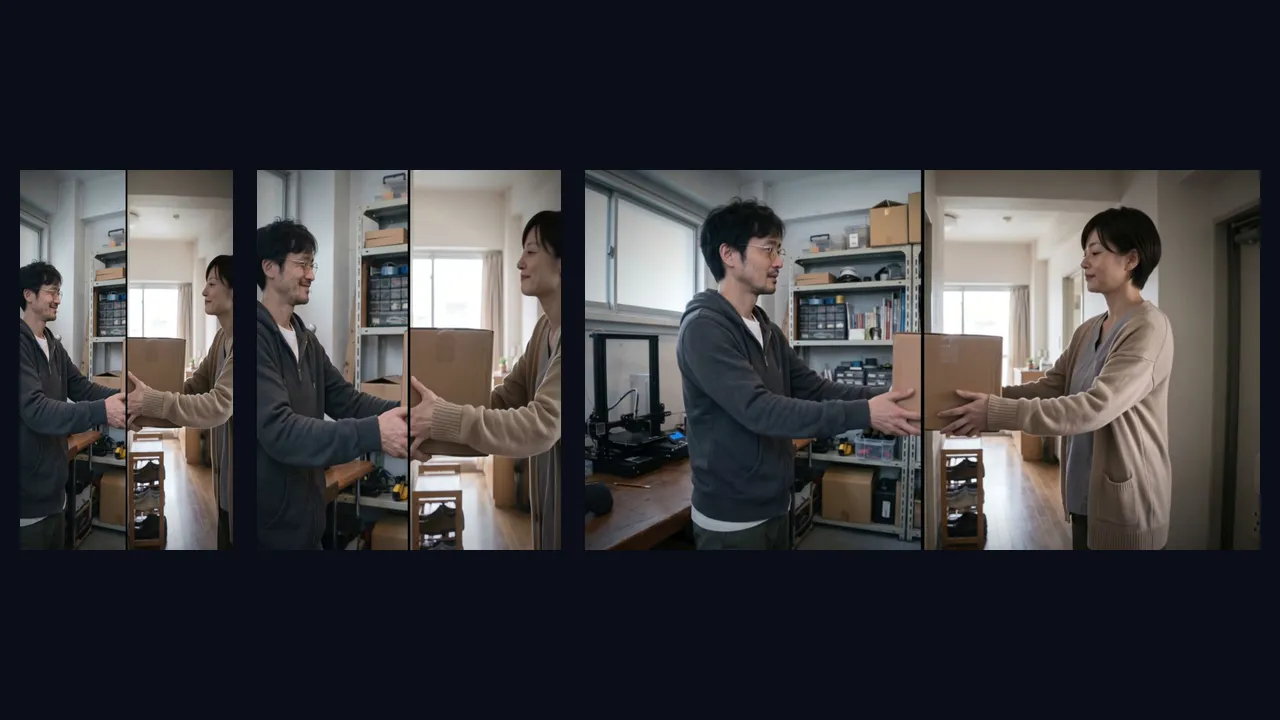
- 03The box did not look like it passed from the CEO to the nurse → we made start and end frames of the split screen and gave both to the model to make a single clip
From version 4 we tried making the left and right footage separately and joining them for the box handoff, but the box size and the time of day did not match. Only after switching to giving the model both the start and end frames did the same box appear to cross the dividing line.
Build on-screen text and motion in HTML
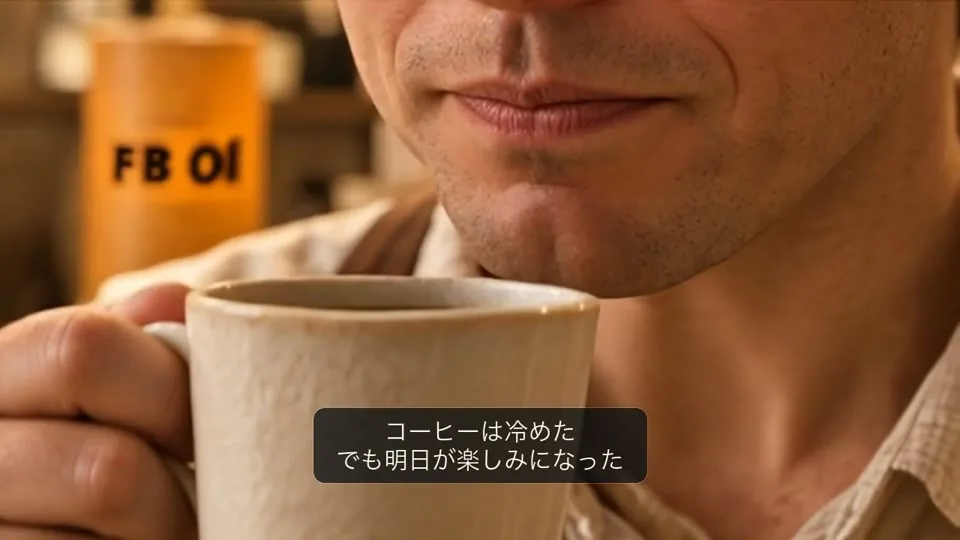
AI video generation tends to garble text inside the frame and struggles to render small numbers or Japanese text accurately. For Yoine, we built every scene with text, such as the product screen, landing pages, ads and notifications, in HTML and exported it frame by frame. The text appears as if typed on a keyboard, and the generated photos sit inside the ads and landing pages as assets.
With HTML, you can change the wording and layout later. In version 4, the landing pages had only a photo, a headline and a button, leaving a lot of empty space, so we filled them out with three features, use cases, prototype photos and a pre-order banner.
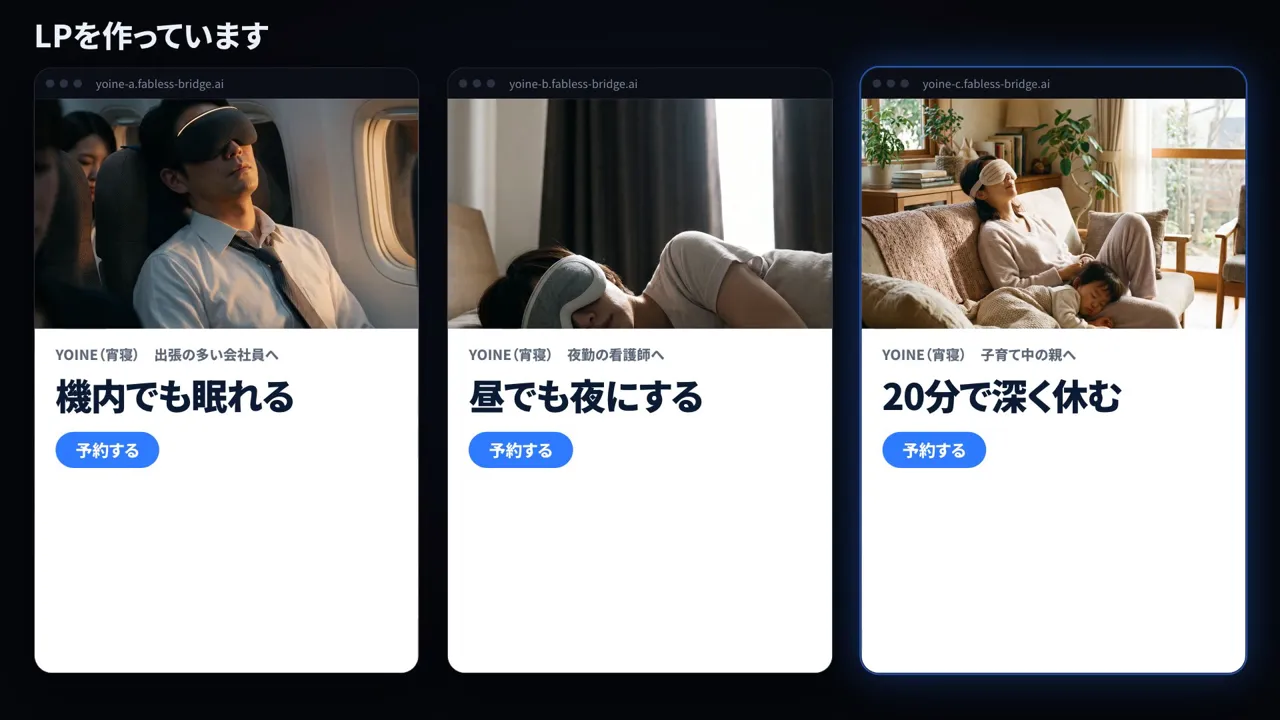 Before
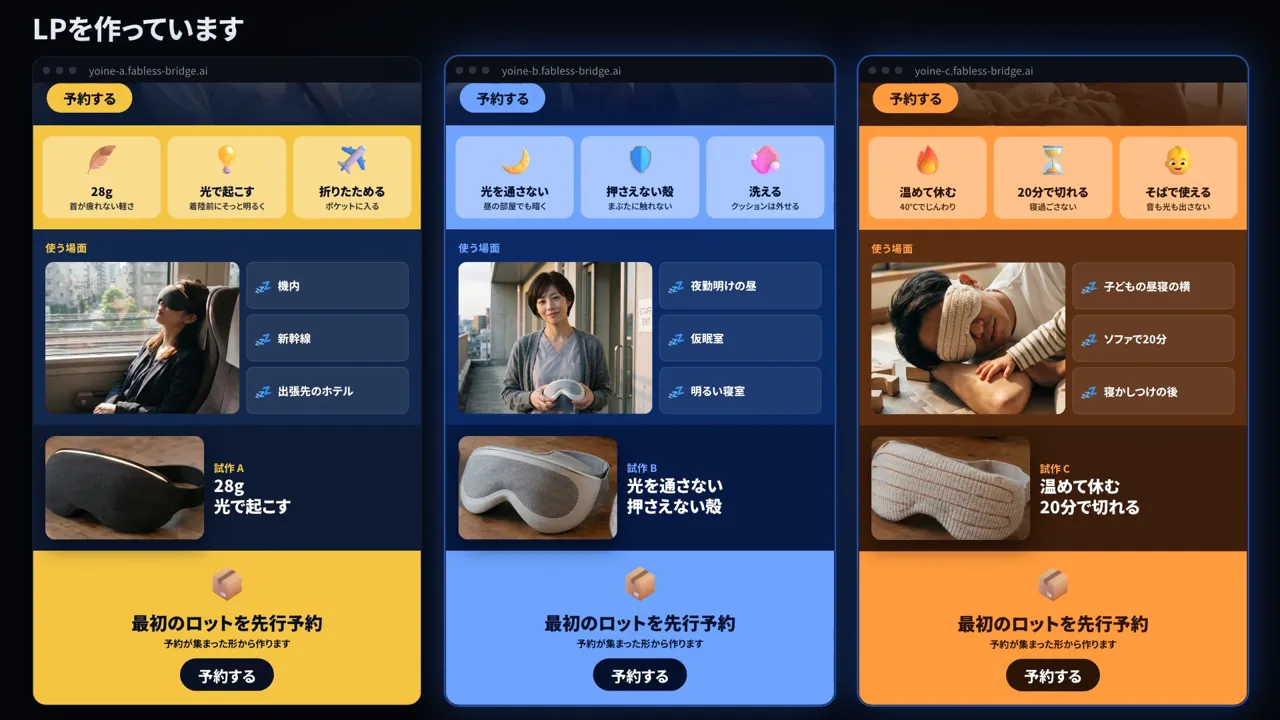 Final cut
HTML brought its own failures too. In version 4, the cards for the three concepts shook violently. The cause was that the screen re-sorted the cards on every frame. We changed it to run once, and the shaking stopped.
Make music and sound effects with AI and sync them to the picture
We made three music options in ElevenLabs, picked one, and timed the scene changes to the build-ups in the track. There is no voice; sound effects such as keystrokes, clicks and notifications carry the motion on screen.
Sound effects should match the picture in number. In version 4, notifications arrived until they filled the screen, yet no notification sound played, so we placed as many notification sounds as notifications shown. For the scene where the concept that drew the most reactions is chosen, we generated gunshot sound effects and timed them to the two rejected concepts falling away.
Our post "AI Video Voiceover and Sound: 3 Fixes, Before and After" covers voice and sound with a different example.
Critique, fix through seven versions and export in three aspect ratios
Once a full version is exported, watch the whole thing and write a critique by timestamp. The author scored Yoine's version 3 at 30 points. It only resembled one of the two reference videos and missed what made the other one good. Icons that kept moving to the music were also unnecessary.
Each note paired a timestamp with the change, such as "the ad at 0:22 is too ordinary" or "at 0:40, raise the loaded items from 24 to 100," and became a requirement for the next version. Repeating this, version 7 became the final cut.
Finally, we exported three videos: landscape 16:9, feed 4:5 and portrait 9:16. Instead of cropping the landscape footage into portrait, we rebuilt the screen elements for each ratio and chose live-action shots with compositions that suit each ratio.
AI video cost: what generative AI cost for one 76-second video
The generative AI cost for Yoine came to about $23 in total. This is not the billed amount but an estimate that adds up the cost cap set in advance for each generation. All images, video and audio were made through paid APIs, with no free tiers.
- Images
- 68 images, about $11.40
- Video
- 37 clips, about $10.30
- Music
- 3 tracks, about $1.50
- Sound effects
- 6 types, about $0.10
There were more images than video clips because we generated many candidates for the cast and scenes and chose among them. Video costs money for each 3-to-5-second shot.
Costs grow after each critique. At the version 4 critique, the projection was about $16. Remaking the quote and scissors scenes, adding other companies' ads and remaking the box handoff added about $4.50 from there.
For Yoine, we set a cost cap before starting work and limited retakes of live-action shots to two per shot. Once the fixes were decided, we estimated how many more generations they needed and what they would cost. When we looked likely to exceed the cap, we stopped and decided whether to raise the cap or change the approach. The cap was raised to $25 partway through.
This amount does not include Claude Code usage fees or human working time. The time spent on the script, critiques, building the screens and deciding on fixes is far larger than the generative AI cost.
The full Yoine video and comparisons from version 3 to the final cut are in the video case study below. If making it in-house is hard, FablessBridge can also handle everything from planning to revisions. Pricing and the production process are on our service page.
Talk to us about your video
You don’t need a finished plan to get in touch.
ContactSee pricing and the production process